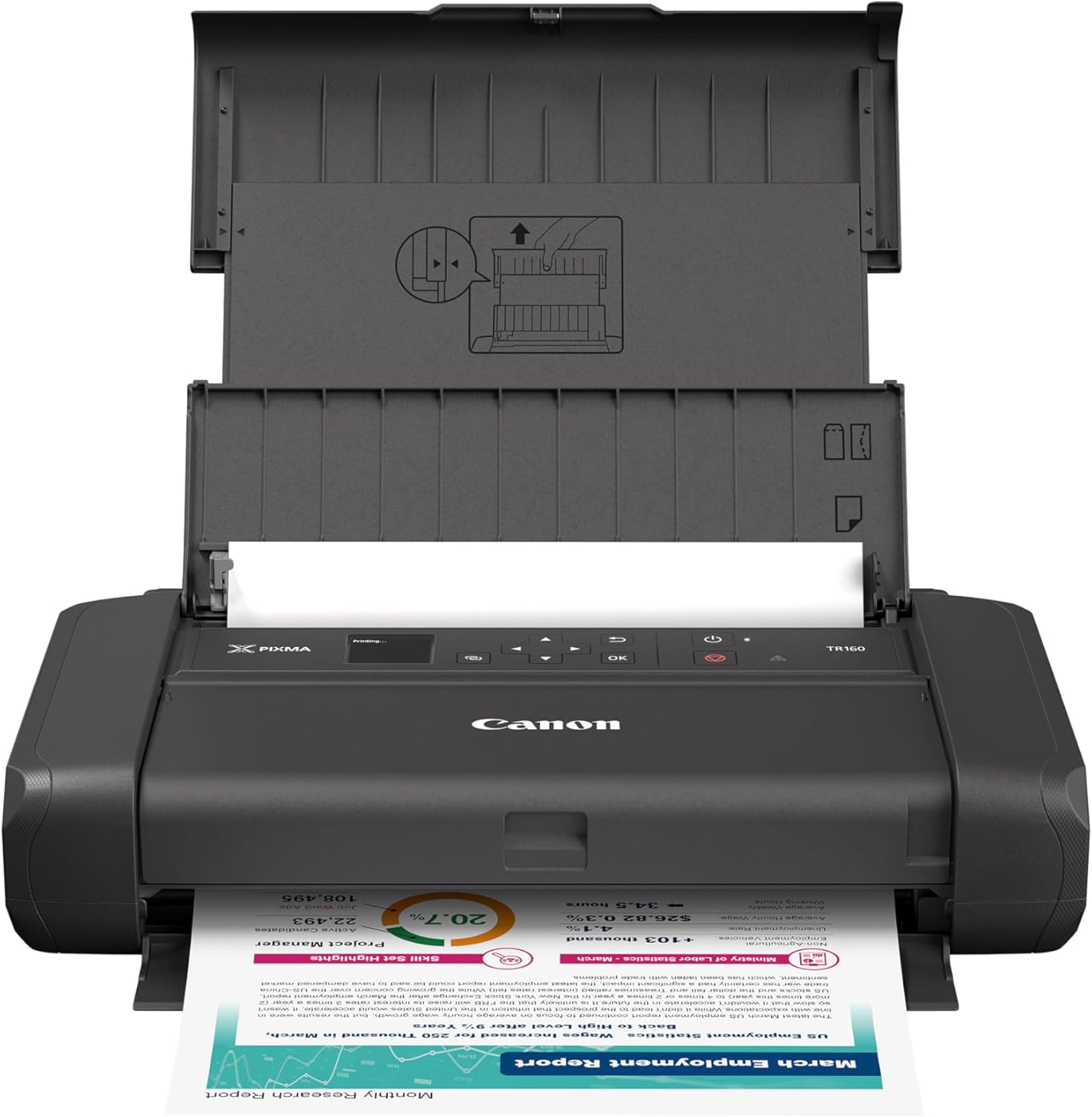
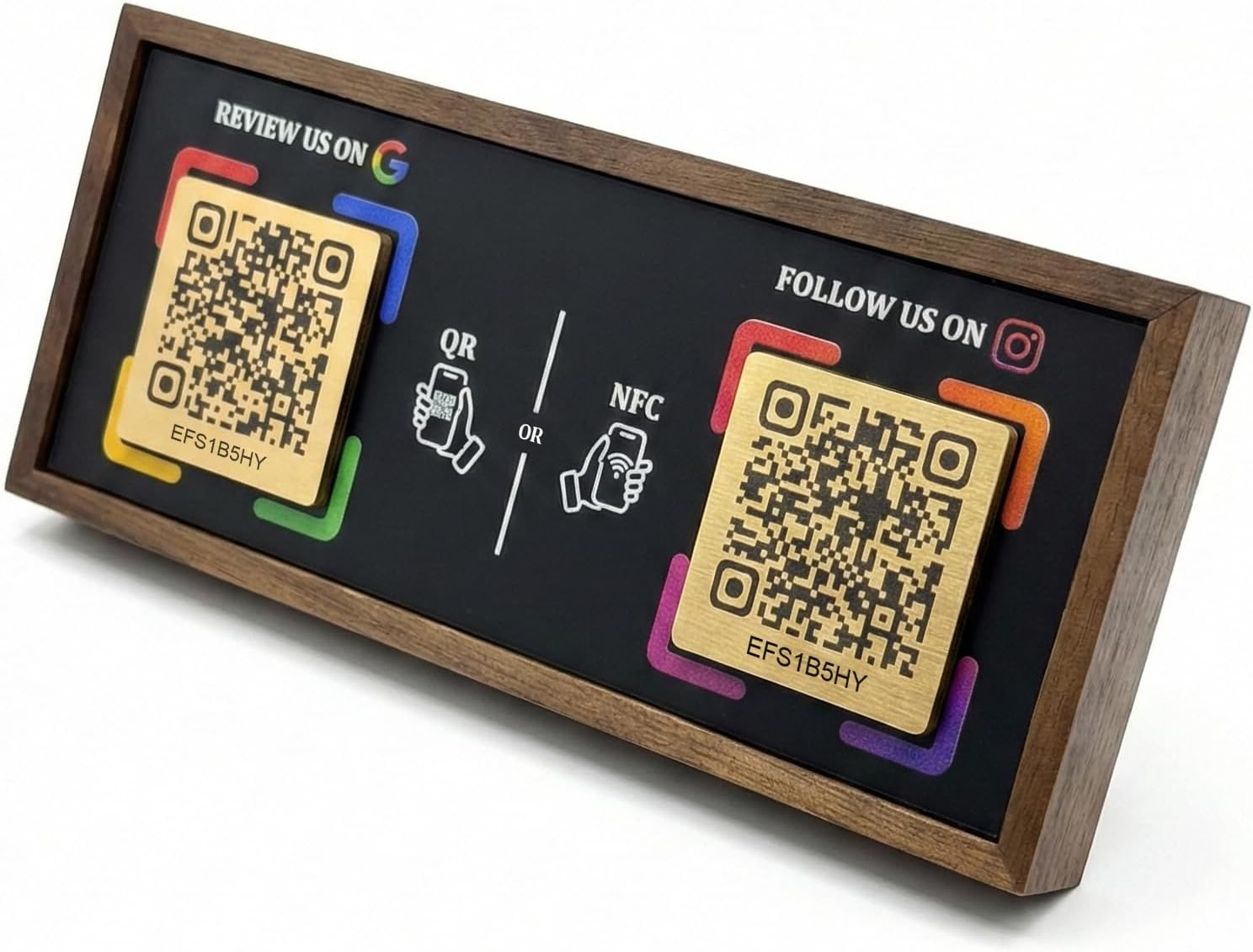
Let guests connect to your Wi-Fi by scanning a QR code instead of typing the network name and password manually. Enter your SSID and password, choose security, generate the code, and download a PNG for printing or display.
This tool is useful for homes, Airbnb rentals, cafés, restaurants, offices, waiting rooms, check-in desks, and events where fast guest access improves the overall experience.
WiFi QR format:
WIFI:T:WPA;S:SSID;P:password;H:false;;
Tip: test-scan before printing or sharing. Most modern networks should use WPA.
Amazon Picks • Better WiFi Setup
A smoother guest WiFi experience does not stop at the QR code. The right hardware can improve speed, coverage, reliability, and presentation for homes, rentals, offices, cafés, and events.
Network Upgrade
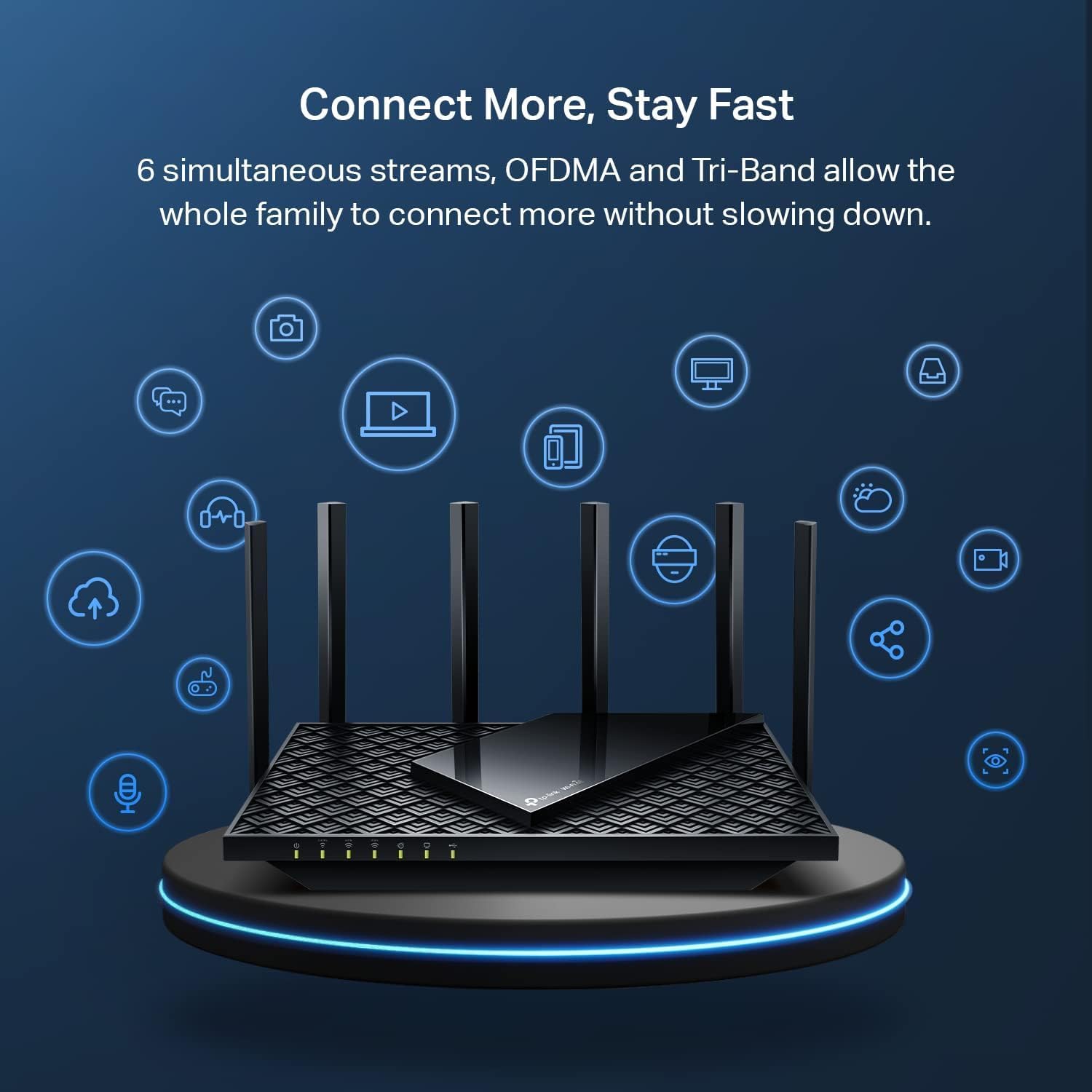
Recommended WiFi Router
Improve signal strength, reduce dead spots, and give guests a faster, more stable connection after they scan your WiFi QR code.
⚡ Better speed📡 Stronger coverage🔒 More secure network
As an Amazon Associate, we earn from qualifying purchases.
What Is a WiFi QR Code?
A WiFi QR code is a scannable code that contains the information needed for a device to join a wireless network. Instead of asking visitors to type a long SSID and password manually, you can display a code that opens the network connection prompt automatically on supported phones and tablets. That reduces friction, saves time, and makes guest access much easier.
This is especially useful in places where people repeatedly ask for WiFi details, such as cafés, waiting rooms, salons, hotels, Airbnb properties, event spaces, offices, and homes with frequent guests. Even though the tool itself is simple, the value is practical: fewer typing errors, fewer support questions, and a faster connection experience.
Step-by-step
Enter your Wi-Fi name (SSID).
Select security type, usually WPA.
Enter your Wi-Fi password unless the network is open.
Click Generate and download your PNG.
Test the code on at least one phone before printing it publicly.
Where to use a WiFi QR code
Home guest Wi-Fi
Airbnb and rentals
Cafes and restaurants
Offices and reception desks
Events and check-in tables
Hotels, waiting rooms, and shared workspaces
Tips for best results
Use at least 320px, or 512px+ for signs and posters.
Choose error correction M or H for printed materials.
SSID is case-sensitive, so double-check spelling.
Most modern networks should use WPA.
Place the code where guests naturally look when asking for internet access.
Privacy-first
QR generation runs locally in your browser and InstantQR does not intentionally store your Wi-Fi details. That local-first workflow is helpful for privacy-conscious users who want a simple browser tool without unnecessary account creation.
How to Choose the Right Security Type
In most cases, you should choose WPA because it covers the modern WPA, WPA2, and WPA3 family used by most current routers. Choose WEP only if you are working with much older equipment. Choose No password only for truly open networks where users are expected to connect without credentials.
If your code does not work on a guest’s device, the most common causes are a mistyped SSID, the wrong password, an incorrect security selection, or a hidden network setting that does not match the router’s actual configuration. That is why a quick test scan before printing is always worth doing.
Why This WiFi QR Tool Is Useful
A lot of QR tools online are thin or confusing. This page is designed to be more practical. It combines the generator itself with guidance on setup, security, placement, and scan reliability so users can go from idea to working result without hunting for separate instructions. That matters for both usability and trust.
A strong tool page should not only generate an output. It should also explain what the output does, when to use it, and how to avoid common mistakes. That is why this page includes a walkthrough, usage examples, security guidance, and related resources.
A WiFi QR code stores your SSID, password, and security type so guests can scan to connect instantly.
Does InstantQR store my WiFi password?
No. This tool runs locally in your browser and does not intentionally store WiFi credentials.
Which security type should I choose?
Most networks use WPA/WPA2/WPA3. Choose WEP only for older routers. Choose “No password” only for open networks.
What size should I use for printing?
Use at least 320px for easy scanning. For posters, 512px or larger can improve reliability.
Where should I place a WiFi QR code?
Place it where guests naturally pause and ask for access, such as front desks, welcome signs, room guides, counters, office lobbies, table cards, or reception areas.